
System Configuration and Upgrade
Controller configuration
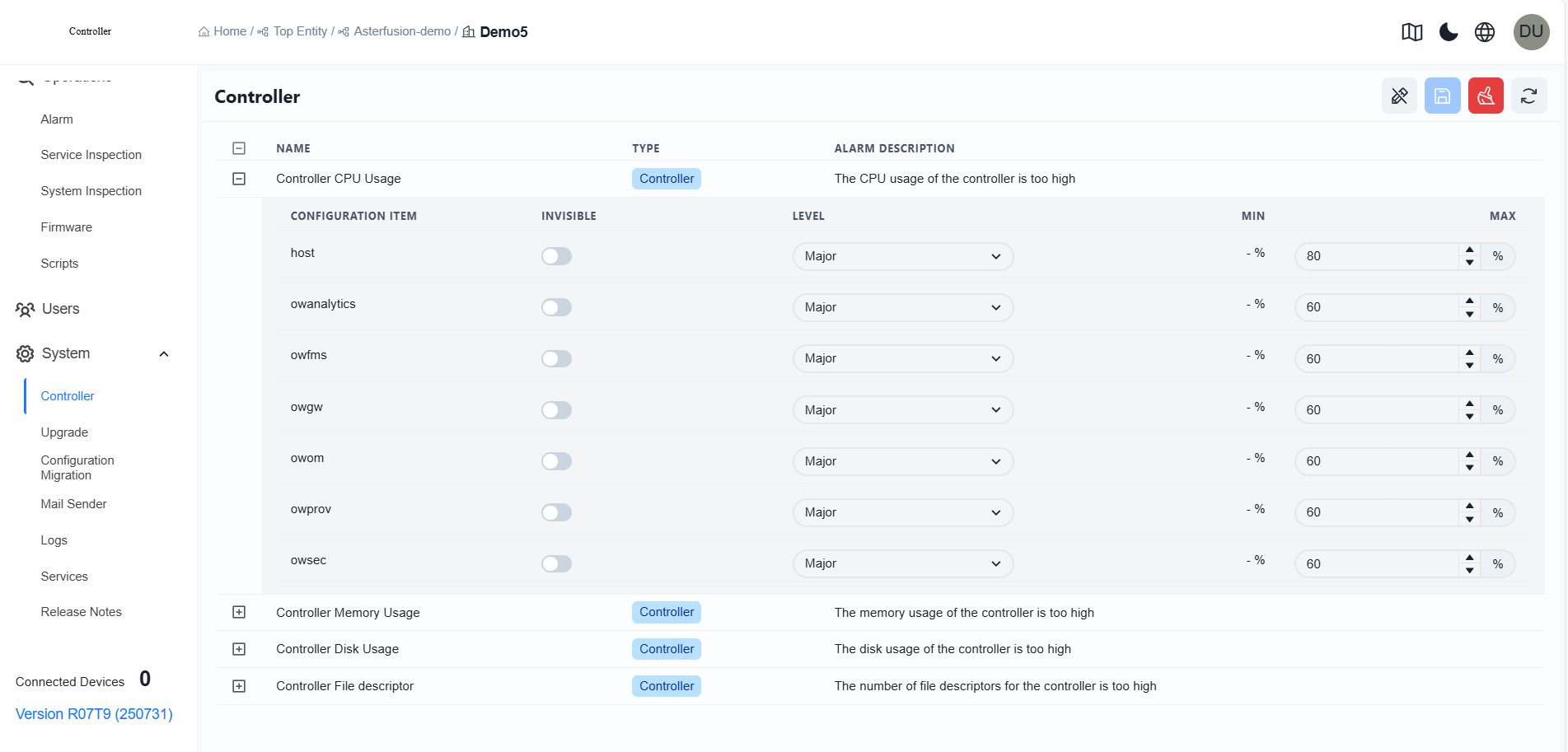
Section titled “Controller configuration”Users can freely adjust the alarm levels and maximum values of each item on the [System] - [Controller] view.
Controller Upgrade
Section titled “Controller Upgrade”Firmware
Section titled “Firmware”| Procedure | Description |
|---|---|
| Step 1 | Go to the [System] - [Upgrade] - [Firmware] view and click the [+] in the upper right corner to create a firmware.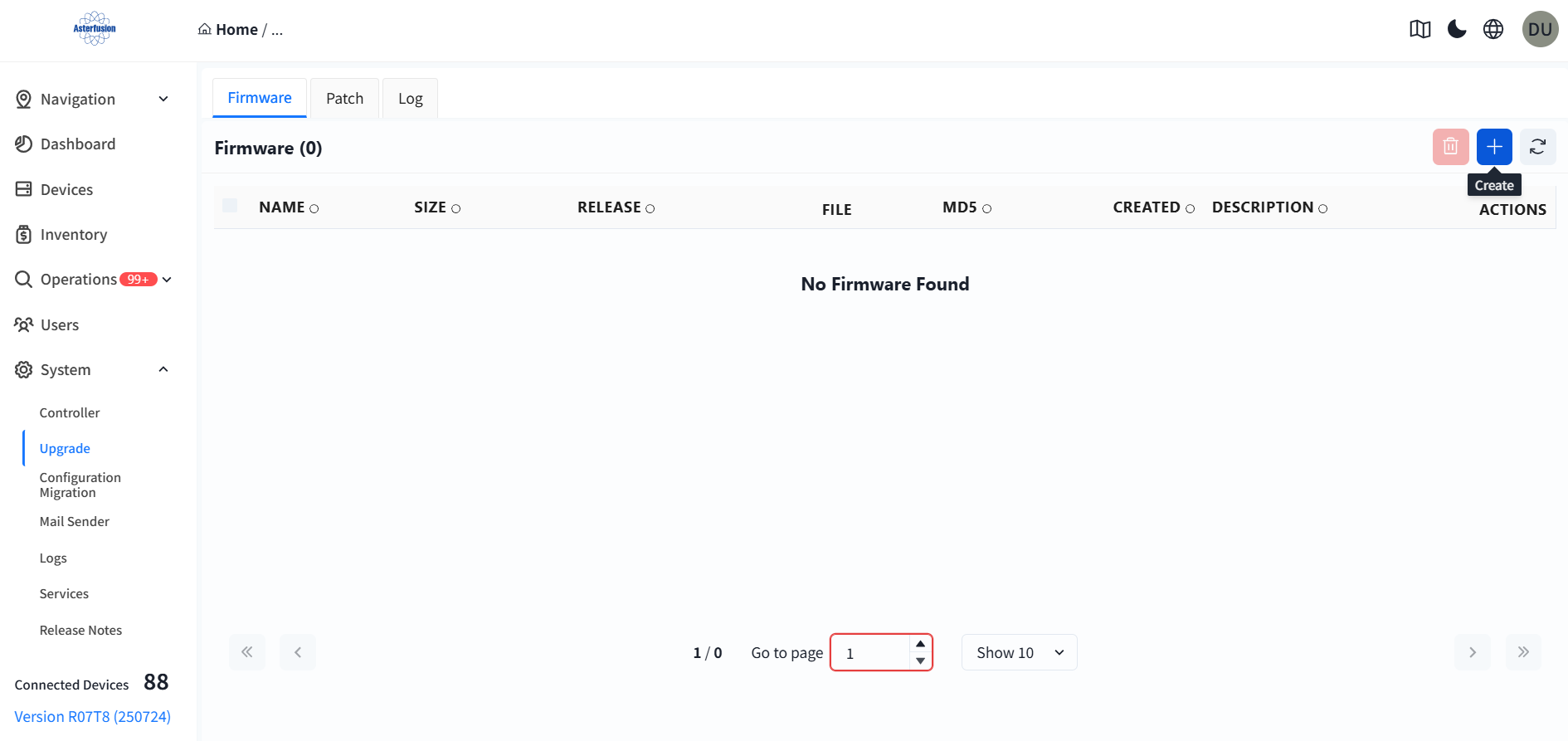 |
| Step 2 | Upload the file accor ding to the page prompts, fill in information such as the name and version, and click [Save] in the upper right corner.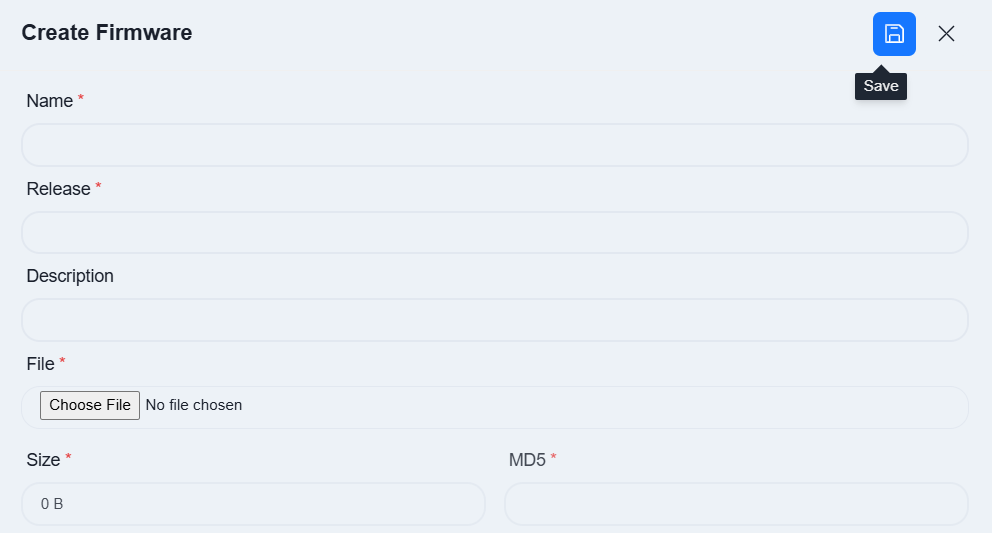 |
| Step 3 | After uploading, click [Firmware Upgrade] - [Start] on the right to upgrade the controller firmware.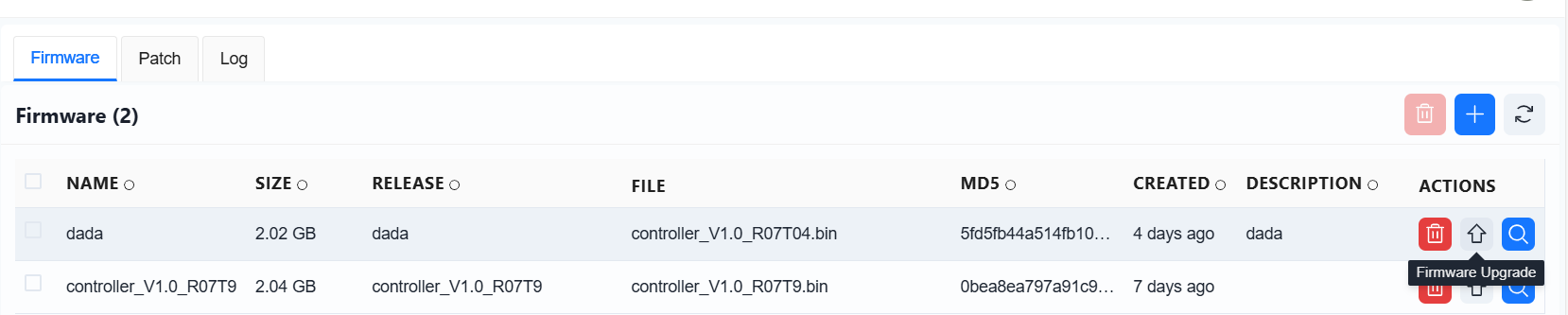 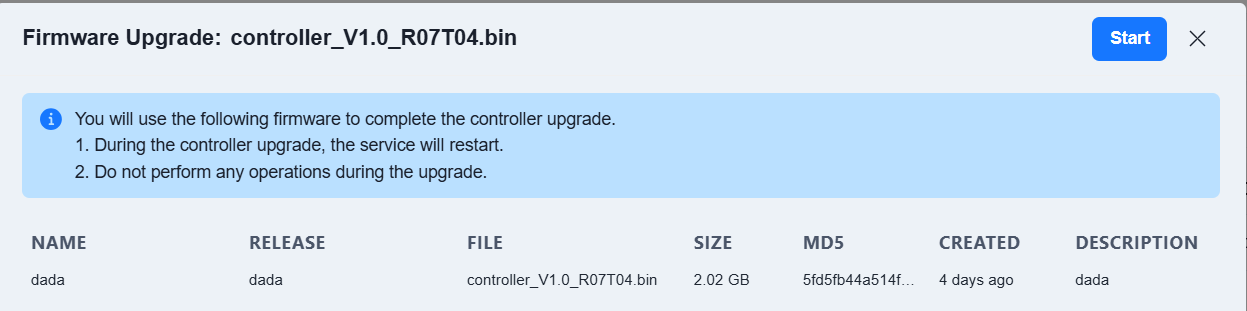 |
Patches can achieve precise modifications to target files through incremental updates.
| Procedure | Description |
|---|---|
| Step 1 | Click [System] - [Upgrade] - [Patch] - [+] to create a patch.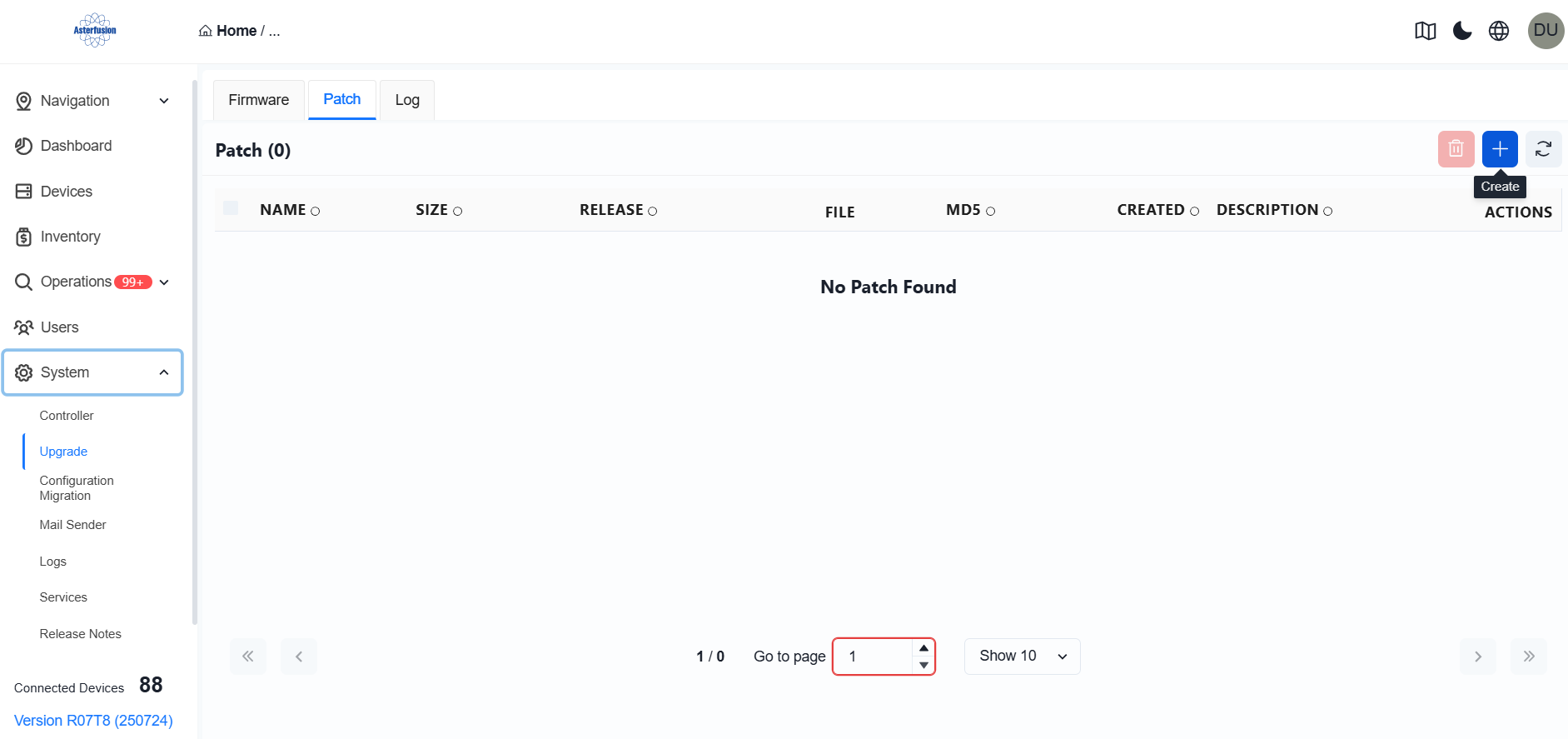 |
| Step 2 | Upload the file according to the page prompt, fill in information such as the name and version, and click [Save] in the upper right corner.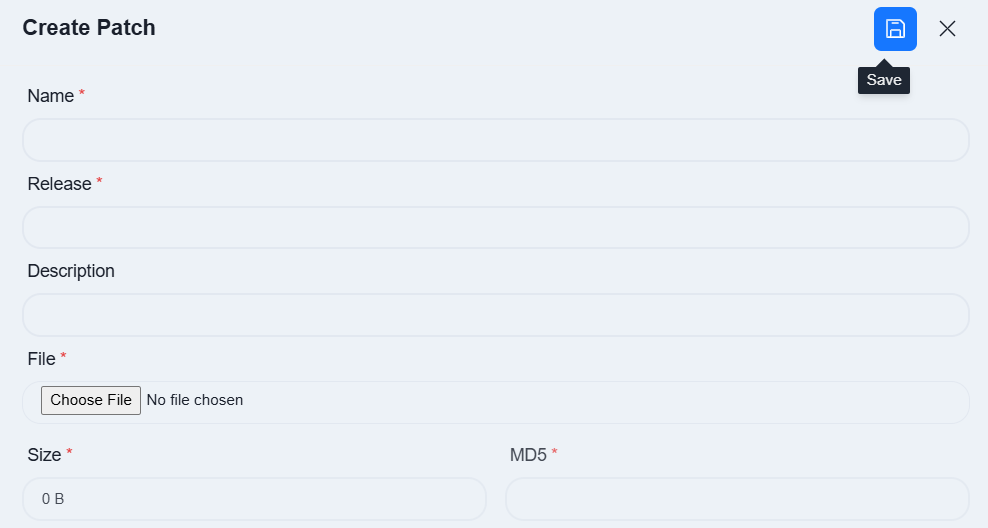 |
| Step 3 | Click [Patch Apply] - [Start] on the right side to apply the controller patch. 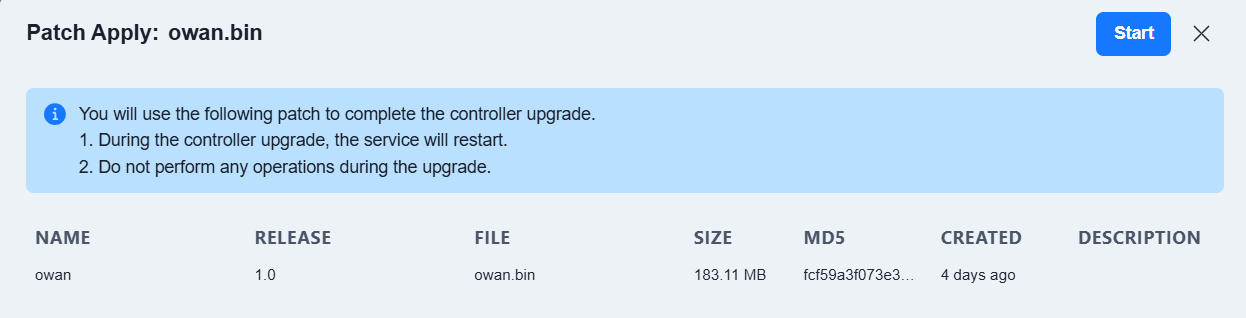 |
Configuration Migration
Section titled “Configuration Migration”The controller configuration migration function enables the overall configuration migration through a one-click operation, which facilitates users to quickly reuse the existing configuration when creating a new controller.
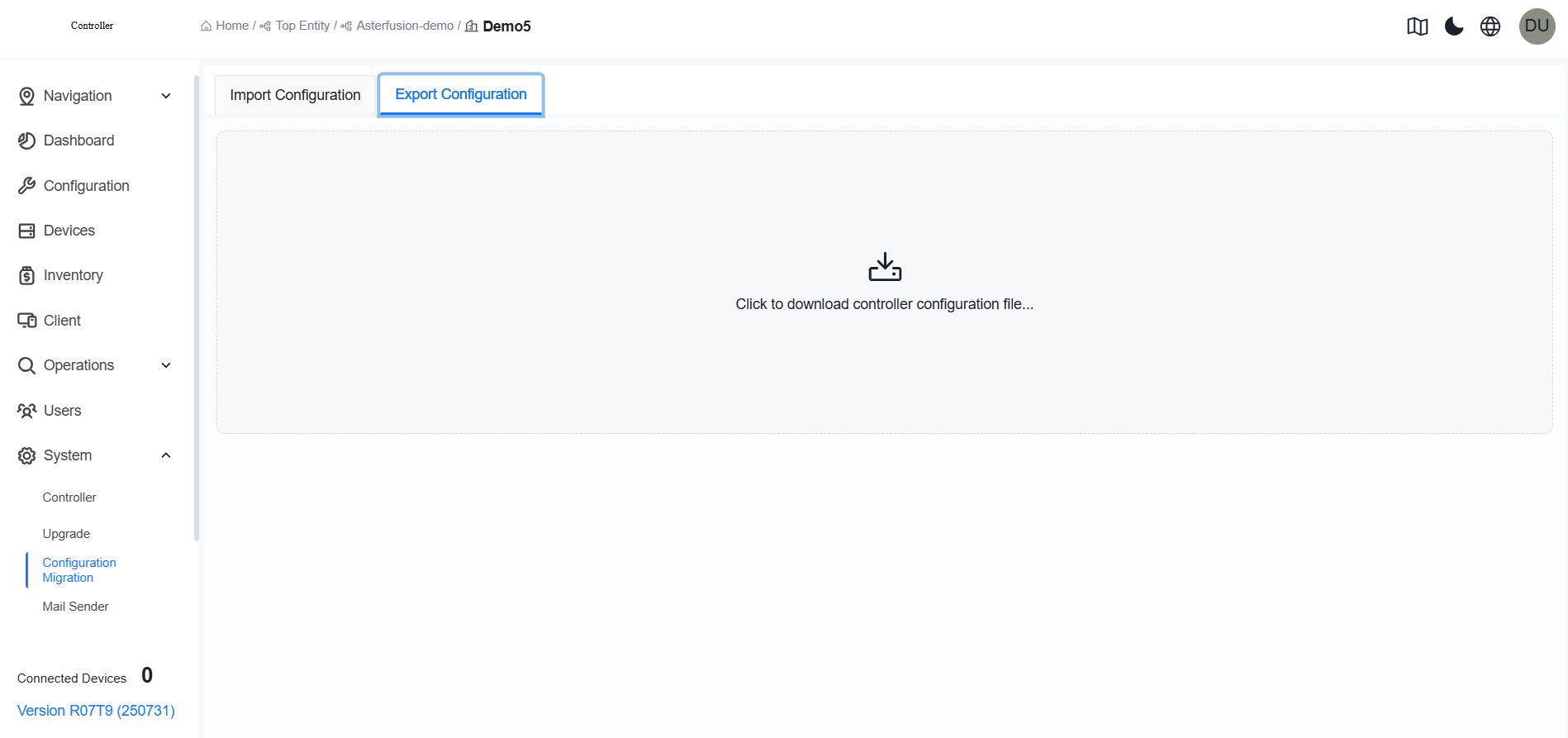
Enter the [System] - [Configuration Migration] view of the original controller, click [Export Configuration] - [Click to Download the Controller Configuration File] to export the configuration file.
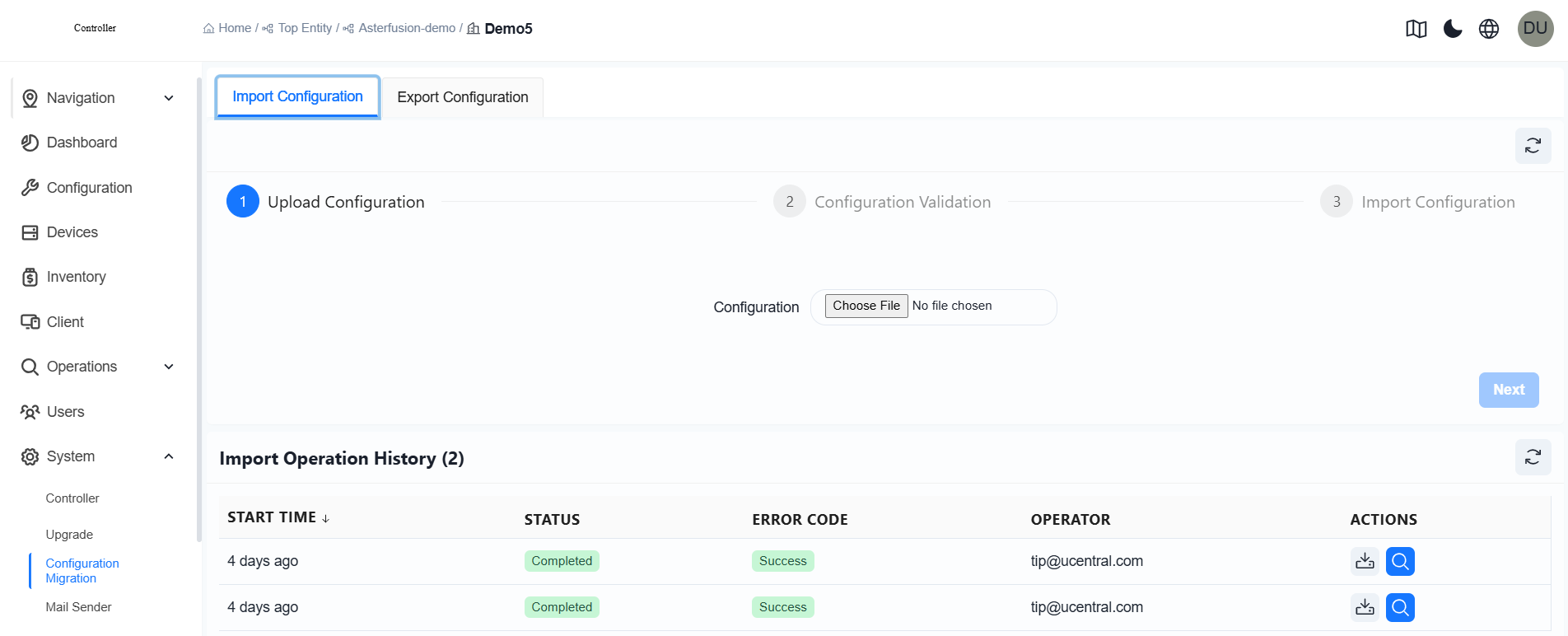
In the controller where you need to import the configuration, go to [System] — [Configuration Migration] — [Import Configuration], and click [Choose File] — [Next].
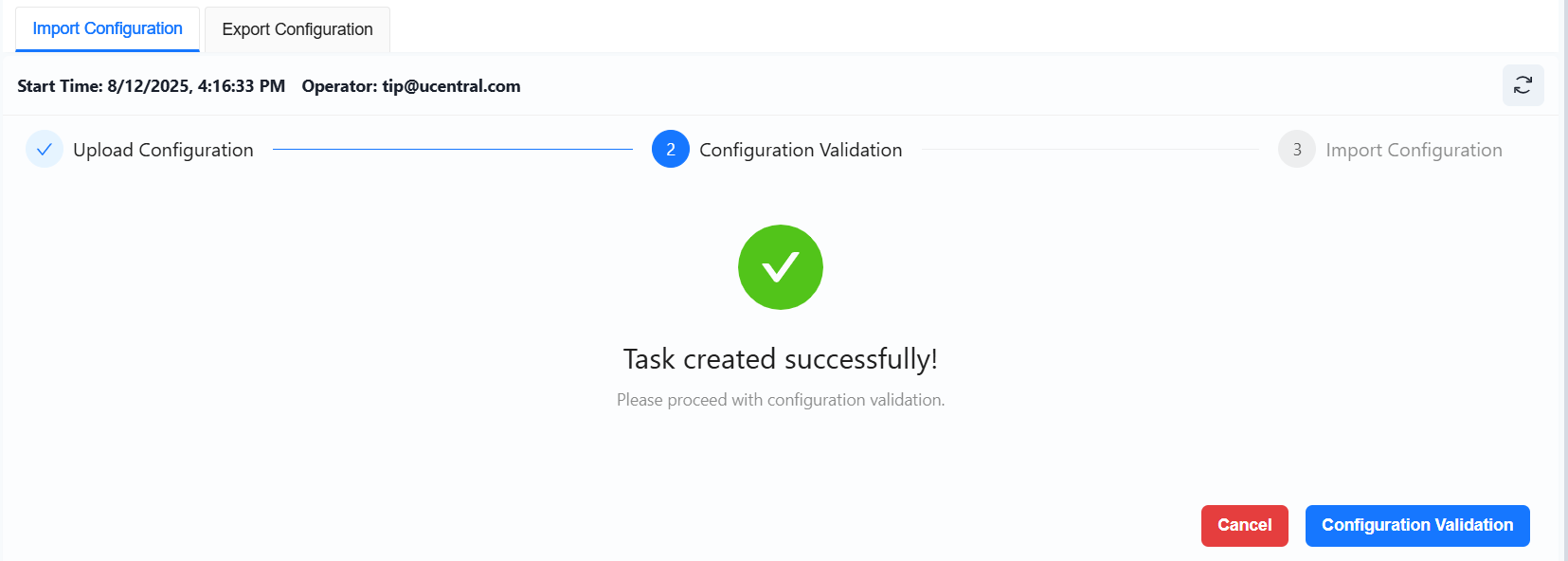
Click on [Configuration Verification]
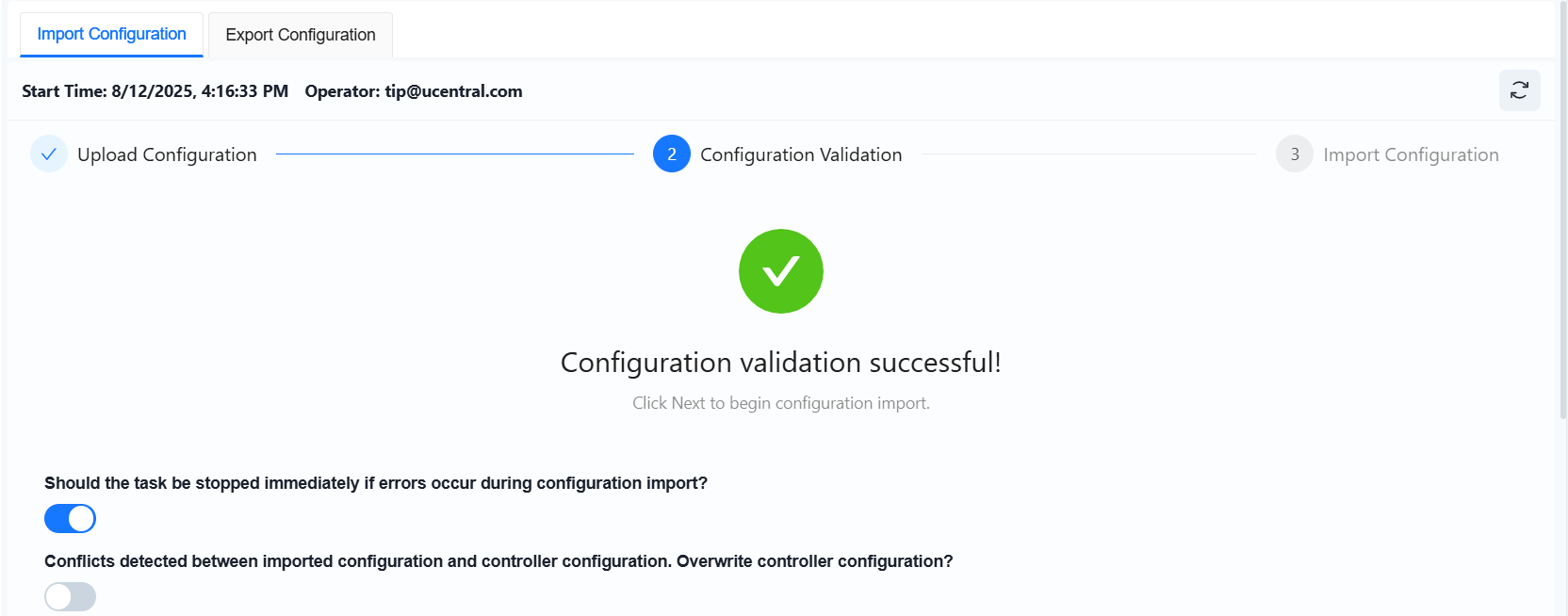
Scroll down the page and click [Next] to proceed with the import configuration.