
Getting Started with Linux KVM
此内容尚不支持你的语言。
Preamble
Section titled “Preamble”This document serves as a technical guide for deploying and validating a high-performance virtual network gateway using AsterNOS-VPP in a virtualized Linux environment. It outlines the environment requirements, configuration steps, and key technologies used throughout the process.
Target Audience
Section titled “Target Audience”This guide is designed for:
- Network engineers
- System administrators
- Developers
…who need to build a high-performance network testing or routing platform on top of QEMU/KVM with PCI Passthrough acceleration.
Prerequisites
Section titled “Prerequisites”To follow this guide effectively, readers should have basic proficiency in the following areas:
Linux Fundamentals
Section titled “Linux Fundamentals”Comfort with Linux command-line operations, including editing files and performing routine system administration tasks.
Networking Fundamentals
Section titled “Networking Fundamentals”Understanding of essential Layer-2/Layer-3 concepts such as IP addressing, subnet masks, default gateways, routing, and VLAN segmentation.
Virtualization Concepts
Section titled “Virtualization Concepts”Basic knowledge of Virtual Machines and host-guest architectures, ideally with some familiarity using QEMU/KVM.
Objective
Section titled “Objective”This document provides a step-by-step guide for deploying an AsterNOS-VPP virtual machine on an Ubuntu host using QEMU/KVM along with PCI Passthrough. The end goal is to build and verify a high-performance virtual router that supports:
- Inter-VLAN routing
- NAT for internet access
…within a virtualized test environment.
Applicable Models and Versions
Section titled “Applicable Models and Versions”Hardware
Section titled “Hardware”- Host Machine: ThinkCentre M8600t-N000 (example reference model).
- Network Adapter: Intel I350 Quad-Port Gigabit Ethernet.
- CPU Requirements: Processor must support the SSE4 instruction set. You can verify this using lscpu and checking that sse4 appears in the CPU flags.
Supported Network Adapters
Section titled “Supported Network Adapters”| Manufacturer | Series / Type | Vendor ID | Device ID / Class |
|---|---|---|---|
| Intel | All Network Devices | 0x8086 | Class 0x0200 |
| Intel | QAT Devices (VFs) | 0x8086 | Class 0x0b40 with Device IDs:0x0443, 0x18a1, 0x19e3, 0x37c9, 0x6f55, 0x18ef, 0x4941, 0x4943, 0x4945 |
| Cisco | VIC | 0x1137 | 0x0043, 0x0071 |
| Chelsio | T4/T5 | 0x1425 | 0x4000 - 0x5fff |
| Amazon | Elastic Network Adapter (ENA) | 0x1d0f | 0xec20, 0xec21 |
| Marvell (Cavium) | Legacy Cavium Adapters | 0x177d | 0x9712 |
| Marvell (QLogic) | FastlinQ QL41000 Series | 0x1077 | 0x1003, 0x1004 |
| Broadcom | NetXtreme S & E Series Only | 0x14e4 | 0x1604, 0x1605, 0x1614, 0x1606, 0x1609 All IDs > 0x16c0 EXCEPT: 0x16c6, 0x16c7, 0x16dd, 0x16f7, 0x16fd, 0x16fe, 0x170d, 0x170c, 0x170e, 0x1712, 0x1713 |
| vNIC | 0x1ae0 | 0x0042 |
Software
Section titled “Software”- Host Operating System: Ubuntu Linux 24.04
- Virtualization Stack: QEMU/KVM 8.2.2, libvirt 10.0.0
- Guest System: AsterNOS-VPP
License Activation(Optional)
Section titled “License Activation(Optional)”The system defaults to the Free Edition. To unlock Commercial Edition features, follow these steps:
- Get Serial Number: Run
show versionin the SONiC CLI and note the Serial Number. - Obtain License: Send the SN to us to receive your license file.
- Install File: Upload the license file to the directory
/etc/sonic/lic/. - Apply License: Run one of the following commands to activate:
- Bash:
sudo licmgrdctl update - CLI:
license update
- Bash:
Feature Overview
Section titled “Feature Overview”PCI Passthrough
Section titled “PCI Passthrough”A virtualization feature that assigns a physical hardware device directly to a VM, giving the VM exclusive access and enabling near-native performance.
Inter-VLAN Routing
Section titled “Inter-VLAN Routing”A routing function that enables communication between different network segments by creating virtual Layer-3 interfaces for each VLAN.
Network Address Translation (NAT)
Section titled “Network Address Translation (NAT)”Allows devices in private subnets to access the public internet by reusing the router’s public IP address.
Typical Deployment Example: Dual-Subnet Routing + NAT
Section titled “Typical Deployment Example: Dual-Subnet Routing + NAT”Requirements
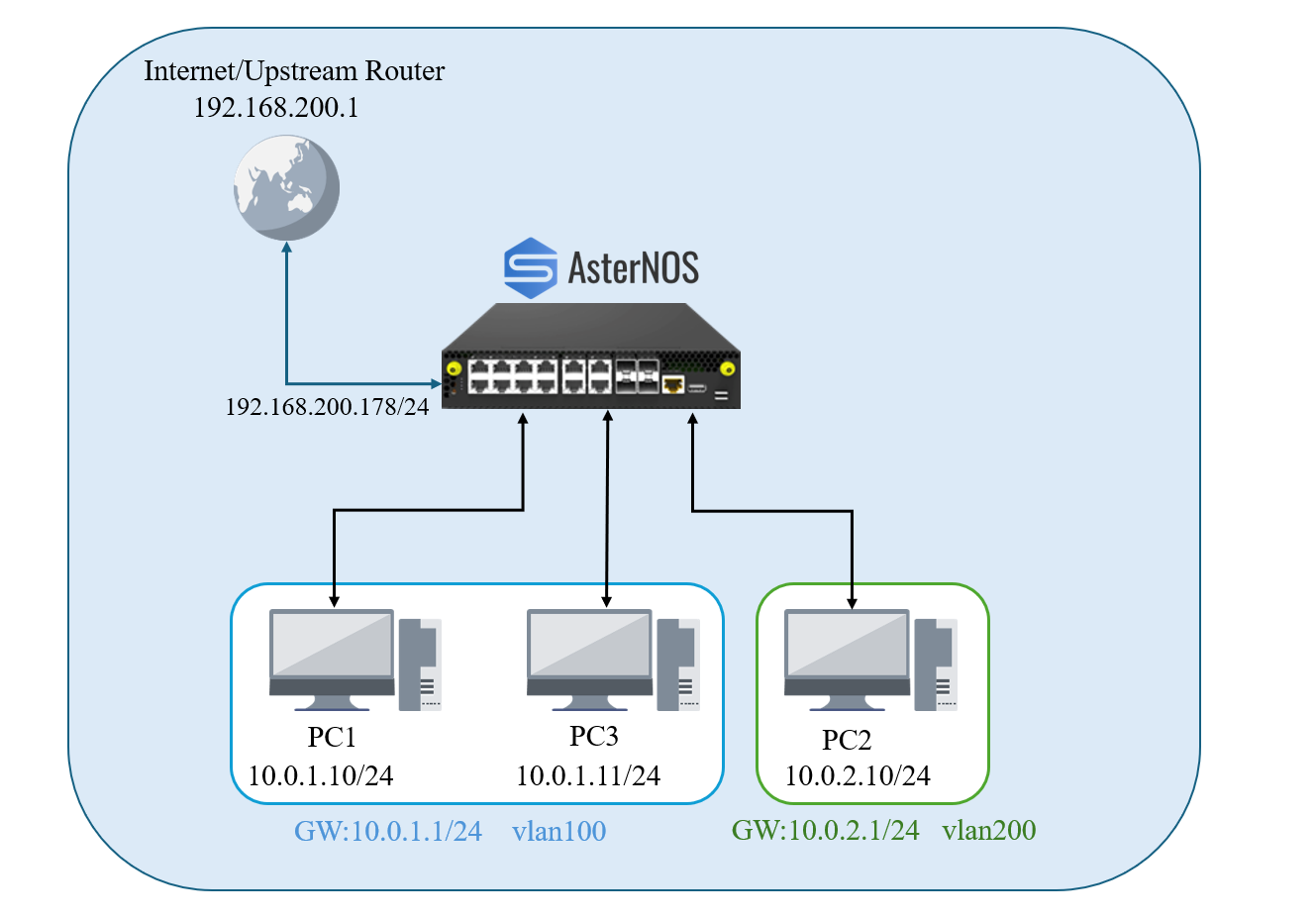
Section titled “Requirements”Deploy an AsterNOS-VPP virtual router with one dedicated WAN port and multiple dedicated physical LAN ports via PCI Passthrough.
- Group the LAN ports into two VLANs, each connecting to a separate PC or subnet.
- Ensure both PCs/subnets have internet access via the VM’s NAT.
- Ensure hosts in both VLANs can communicate with each other through inter-VLAN routing.
Topology
Section titled “Topology”-Physical Connections:- Host ens3f0 (PCI Address 02:00.0) -> Upstream Router (WAN)
- Host ens3f1 (PCI Address 02:00.1) -> PC1 (LAN1)
- Host ens3f2 (PCI Address 02:00.2) -> PC2 (LAN2)
- Host ens3f3 (PCI Address 02:00.3) -> PC3 (LAN3)
Environment
Section titled “Environment”| Device Type | Model/System | Role/Description |
|---|---|---|
| Host Machine | ThinkCentre-M8600t-N000 | Ubuntu, QEMU/KVM,libvirt Host |
| VM | AsterNOS-VPP | 8GB RAM, 4-Core CPU,64GB DISK |
| PC1 | Windows PC | LAN1 Client, connected to ens3f1 |
| PC2 | Windows PC | LAN2 Client, connected to ens3f2 |
| PC3 | Windows PC | LAN3 Client, connected to ens3f3 |
| Network Plan | Interface (AsterNOS) | IPAddress/Range | Description |
|---|---|---|---|
| WAN | Ethernet1 | 192.168.200.178/24 | Connects to upstream router 192.168.200.1 |
| LAN1 | Vlan100 | 10.0.1.0/24 | Subnet for PC1 and PC3, Gateway 10.0.1.1 |
| LAN2 | Vlan200 | 10.0.2.0/24 | Subnet for PC2, Gateway 10.0.2.1 |
Software Acquisition
Section titled “Software Acquisition”-Software Download
The .img file provided in this guide is a pre-installed** Virtual Disk Image (VDI)**. It contains virtual drivers intended only for use in virtualized environments.
Configuration Steps on Ubuntu Host
Section titled “Configuration Steps on Ubuntu Host”BIOS/UEFI Settings:
Section titled “BIOS/UEFI Settings:”Objective: To enable the IOMMU function at the firmware level (BIOS/UEFI), making the hardware feature available to the operating system.
Action: Reboot the host and enter the BIOS/UEFI setup. Ensure that both Intel(R) VT-d and Intel(R) Virtualization Technology are enabled.
GRUB Parameter Configuration:
Section titled “GRUB Parameter Configuration:”Objective: To instruct the Linux kernel toactivate and usethe IOMMU feature that was enabled in the firmware.Terminal window
Action: Edit the GRUB configuration files /etc/default/grub, find the line starting with GRUB_CMDLINE_LINUX_DEFAULT and add “intel_iommu=on iommu=pt” inside the quotes.
#sudo nano /etc/default/grubGRUB_CMDLINE_LINUX_DEFAULT="quiet splash intel_iommu=on iommu=pt"#Update the GRUB configuration by sudo update-grubConfigure VFIO Driver:
Section titled “Configure VFIO Driver:”Objective: To use the dedicated vfio-pci driver to take control of the physical NICs intended for passthrough. This prevents the host OS from loading its default drivers, making the NICs available to the VM.
Action:
- Find the NIC’s Device ID
\# This command lists all network devices and their IDslspci -nn | grep -i ethernet
- Configure Driver Binding and Blacklist
## Tell the system that devices with ID 8086:1521 should## be managed by vfio-pciecho "options vfio-pci ids=8086:1521" | sudo tee /etc/modprobe.d/vfio.conf## Prevent Ubuntu from loading the default 'igb' driver## for this NIC to avoid conflictsecho "blacklist igb" | sudo tee /etc/modprobe.d/blacklist-igb.conf- Force Early Loading of VFIO Modules: edit the /etc/initramfs-tools/modules and add the following lines at the end:
vfiovfio_iommu_type1vfio_pcivfio_virqfd- Update Configuration and Reboot:
sudo update-initramfs -usudo rebootVerify Host Configuration:
Section titled “Verify Host Configuration:”After rebooting, run the following command in the host terminal:
lspci -nnk | grep -iA3 02:00Expected Result: TheKernel driver in use: field for all four NICs(from02:00.0to02:00.3) should now show vfio-pci.
Launching the Virtual Machine
Section titled “Launching the Virtual Machine”Method A: Manual Launch with QEMU (For Quick Tests)
This method starts the virtual machine directly with a single command. It is simple and convenient, suitable for temporary testing and validation.
Launch the Virtual Machine: Run the following QEMU command on the host.
sudo qemu-system-x86_64 \ -enable-kvm \ -m 8192 \ -smp 4 \ -cpu host \ -drive file=/var/lib/libvirt/images/sonic-vpp.img,if=virtio,format=qcow2 \## Please replace this with the actual path to your image file -device vfio-pci,host=02:00.0,id=wan-nic \ -device vfio-pci,host=02:00.1,id=lan-nic1 \ -device vfio-pci,host=02:00.2,id=lan-nic2 \ -device vfio-pci,host=02:00.3,id=lan-nic3 \ -nographic \ -serial mon:stdioInterface Mapping: The order of the -device parameters determines the interface names inside the AsterNOS VM. For this example:
| QEMU -device | Host PCI Address | AsterNOS VM Interface | Planned Use |
|---|---|---|---|
| host=02:00.0 | 02:00.0 | Ethernet1 | WAN |
| host=02:00.1 | 02:00.1 | Ethernet3 | LAN Port (PC2) |
| host=02:00.2 | 02:00.2 | Ethernet3 | LAN Port (PC2) |
| host=02:00.3 | 02:00.3 | Ethernet4 | LAN Port (PC3) |

Method B: Persistent Launch with libvirt (Recommended)
This method uses libvirt to manage the virtual machine, enabling persistent operation and auto-start on boot.
sudo virt-install \ --name AsterNOS \ --virt-type kvm \ --memory 8192 \ --vcpus 4 \ --cpu host-passthrough \ --disk path=/var/lib/libvirt/images/sonic-vpp.img,bus=virtio \## Please replace this with the actual path to your image file --import \ --os-variant debian11 \ --network none \ --host-device 02:00.0 \ --host-device 02:00.1 \ --host-device 02:00.2 \ --host-device 02:00.3 \ --nographicsCreate the VM: Run the following command on the host. After executing this command, the virtual machine will be automatically defined and started. You will see the boot process and login prompt directly in your current terminal.Terminal window
sudo virsh autostart AsterNOSAuto-Start the Virtual Machine: Once the virtual machine has been created successfully, open a new terminal on the host machine and run the following command to set it to start automatically on boot:Terminal window
Access and Configure the AsterNOS-VPP VM
Section titled “Access and Configure the AsterNOS-VPP VM”Regardless of which method you used to start the virtual machine, the subsequent configuration steps are the same.
Access the Virtual Machine Console: If you used Method A (QEMU), the VM console is already displayed in your current terminal. If you used Method B (libvirt), you can connect to the virtual machine console at any time using the following command in the host terminal:
sudo virsh console AsterNOS
Log In and Enter Configuration Mode: At the login prompt, use the default credentials to access the system:
- Username: admin
- Password: asteros
Step-by-Step Configuration and Verification:
- Launch the command-line interface & Enter configuration mode
admin@sonic:\~$ sonic-cliconfigure terminal- Configure WAN Interface
sonic(config)# interface ethernet 1sonic(config-if-1)# description WAN_Portsonic(config-if-1)# ip address 192.168.200.178/24
\# Assign this interface to NAT zone 1.\# By convention, the outside (WAN) interface is a non-zero zone,\# and inside interfaces are zone 0.sonic(config-if-1)# nat-zone 1sonic(config-if-1)# exit- Configure VLANs and Gateway Interfaces
sonic(config)# vlan 100sonic(config-vlan-100)# exit
sonic(config)# vlan 200sonic(config-vlan-200)# exit
sonic(config)# interface vlan 100sonic(config-vlan-if-100)# description LAN1_Gateway_for_PC1_and_PC3sonic(config-vlan-if-100)# ip address 10.0.1.1/24sonic(config-vlan-if-100)# exit
sonic(config)# interface vlan 200sonic(config-vlan-200)# description LAN2_Gateway_for_PC2sonic(config-vlan-200)# ip address 10.0.2.1/24sonic(config-vlan-200)# exit- Assign Physical LAN Ports to VLANs
\# Connects to PC1sonic(config)# interface ethernet 2sonic(config-if-2)# description Port_for_PC1sonic(config-if-2)# switchport access vlan 100sonic(config-if-2)# exit
\# Connects to PC2sonic(config)# interface ethernet 3sonic(config-if-3)# description Port_for_PC2sonic(config-if-3)# switchport access vlan 200sonic(config-if-3)# exit
\# Connects to PC3sonic(config)# interface ethernet 4sonic(config-if-4)# description Port_for_PC3sonic(config-if-4)# switchport access vlan 100sonic(config-if-4)# exit- Configure Routing and NAT
\# Configure the default route to point to the upstream routersonic(config)# ip route 0.0.0.0/0 192.168.200.1
\# Enable NAT globallysonic(config)# nat enable
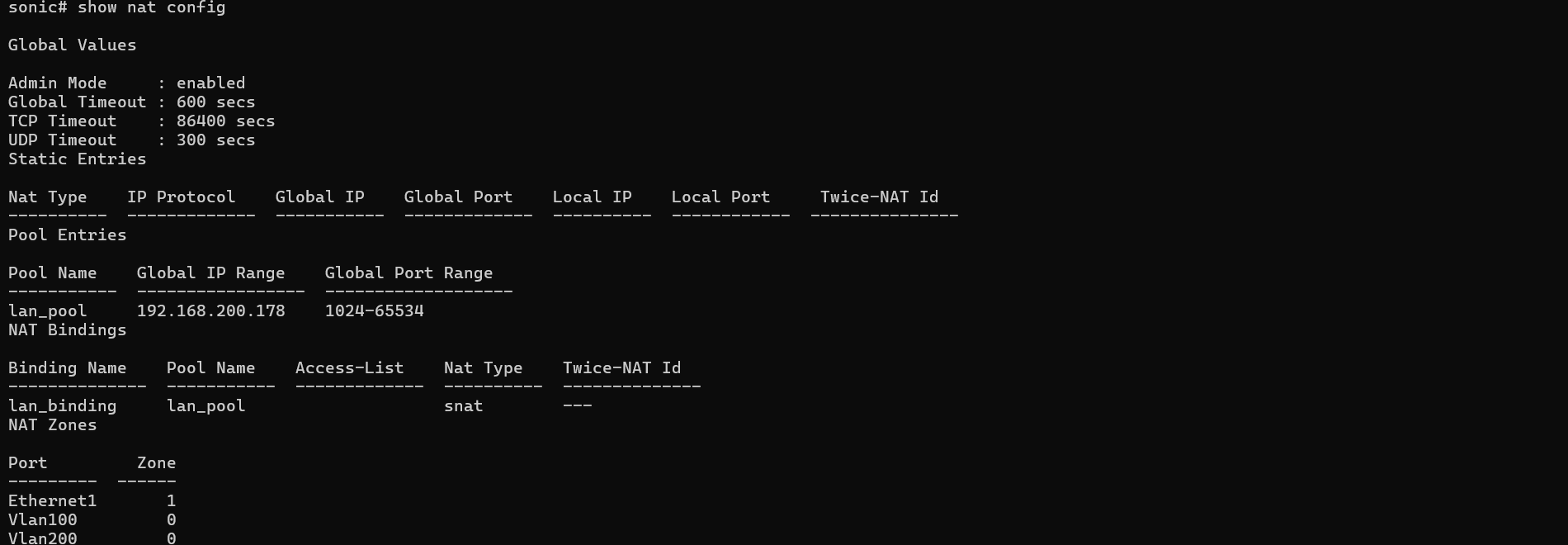
\# Create a NAT pool named 'lan_pool'\# using the router's public IPsonic(config)# nat pool lan_pool 192.168.200.178
\# Bind the pool to a policy named 'lan_binding'\# to apply NAT to all traffic crossing zonessonic(config)# nat binding lan_binding lan_pool- Save Configuration
sonic(config)# write- Verify Configuration:* Please ensure that the Admin/Oper status of the interface shows up/up.*
sonic# show ip interfacessonic# show ip routesonic# show vlan summarysonic# show nat config


Configuration Steps: Client PCs
Section titled “Configuration Steps: Client PCs”- PC1: Set IP to 10.0.1.10, subnet mask to 24, gateway to 10.0.1.1, and DNS to 8.8.8.8.
- PC2: Set IP to 10.0.2.10, subnet mask to 24, gateway to 10.0.2.1, and DNS to 8.8.8.8.
- PC3: Set IP to 10.0.1.11, subnet mask to 24, gateway to 10.0.1.1, and DNS to 8.8.8.8.
Function and Performance Verification
Section titled “Function and Performance Verification”This chapter will comprehensively verify that the virtual router’s core functions and performance metrics meet expectations through a series of tests.
Overall Test Plan
Section titled “Overall Test Plan”We will proceed with the following sequence of tests:
- Layer 2 Switching Performance (Intra-VLAN): Use iperf3 to test the transfer rate between PC1 and PC3 to verify switching performance within the same VLAN.
- Layer 3 Routing Performance (Inter-VLAN): Use iperf3 to test the transfer rate between PC1 and PC2 to verify routing performance between different VLANs, monitored with router-side commands.
- External Connectivity (NAT Verification): Use ping to test if internal PCs can access the public internet, verifying basic NAT connectivity.
Layer 2 Switching Performance Test (PC1 <-> PC3)
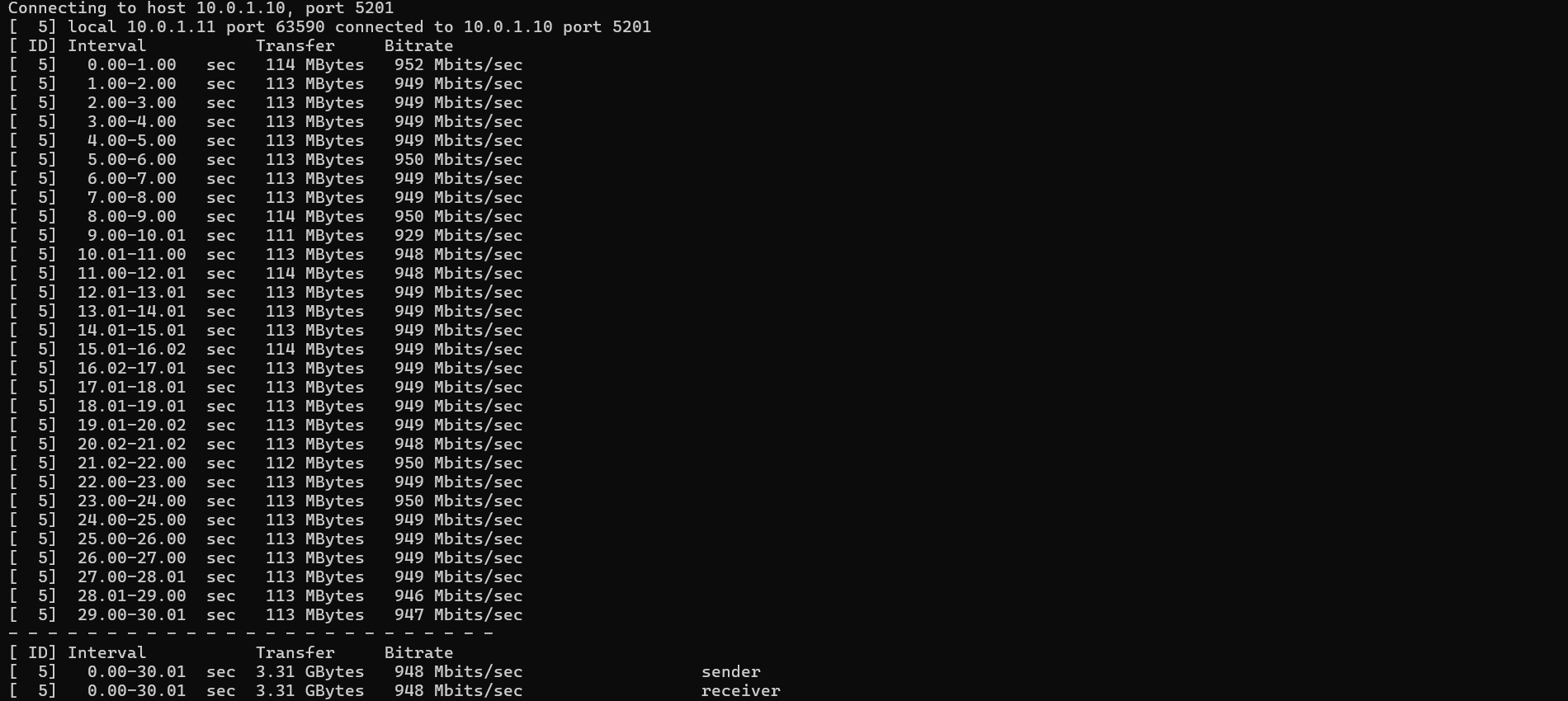
Section titled “Layer 2 Switching Performance Test (PC1 <-> PC3)”Objective: To verify the Layer 2 (L2) data forwarding capability of the virtual router within the same VLAN. Since PC1 and PC3 are both in VLAN 100, communication between them is handled by L2 switching.
Procedure:
- On PC1 (10.0.1.10), open a command prompt and ensure the iperf3 server is running: iperf3 -s.
- On PC3 (10.0.1.11), open a command prompt and execute the client test: iperf3 -c 10.0.1.10 -t 30.
- Results Analysis: The test rate should stabilize around 950 Mbits/sec, achieving Gigabit line-rate.
Layer 3 Routing Performance Test (PC1 <-> PC2)
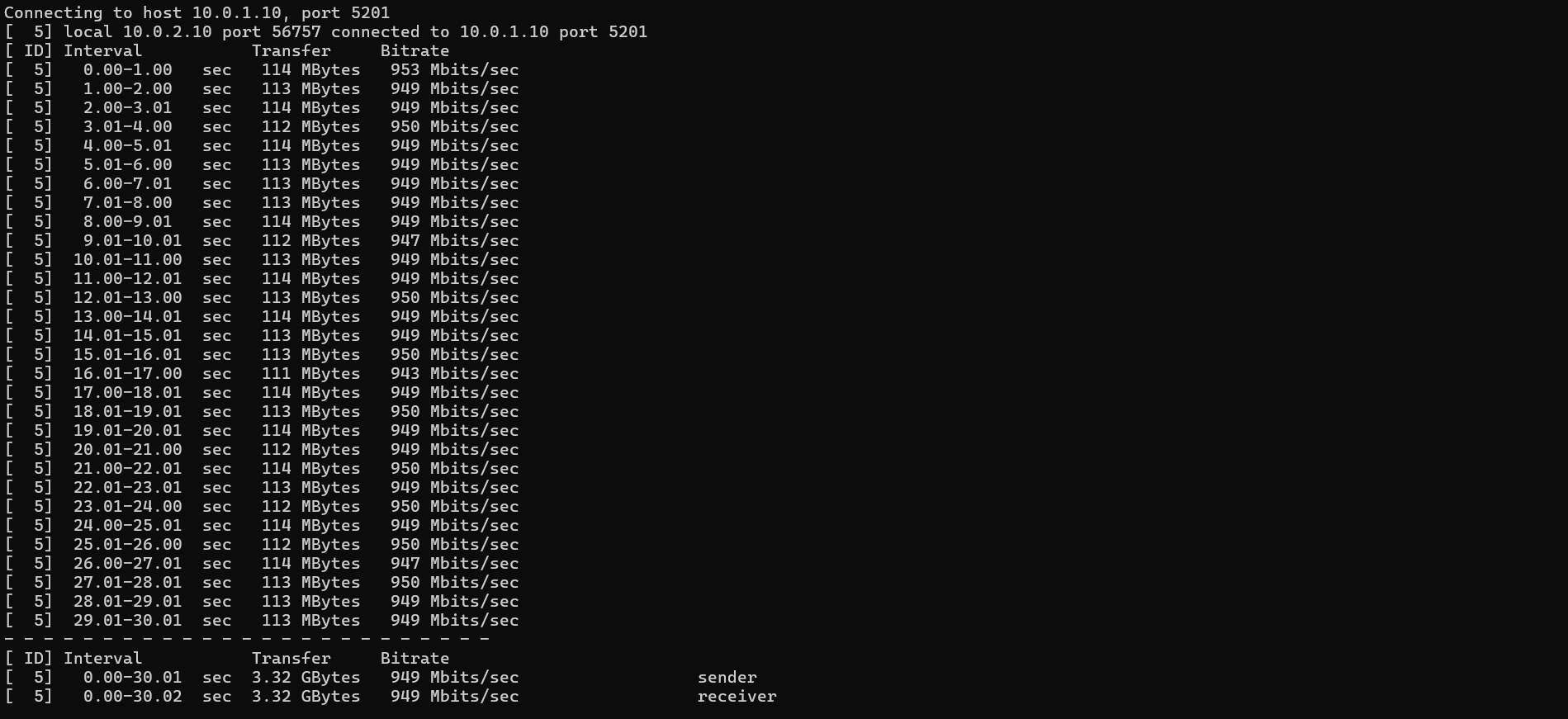
Section titled “Layer 3 Routing Performance Test (PC1 <-> PC2)”Objective: To verify the Layer 3 (L3) routing performance of the virtual router between different VLANs. Communication between PC1 (VLAN 100) and PC2 (VLAN 200) requires L3 routing.
Procedure:
- On PC1 (10.0.1.10), open a command prompt and ensure the iperf3 server is running: iperf3 -s.
- On PC2 (10.0.2.10), open a command prompt and execute the client test: iperf3 -c 10.0.1.10 -t 30.
Results Analysis: The test rate should also achieve line-rate performance of around 950 Mbits/sec.
Router-Side Verification: During the iperf3 test, you can monitor the interface statistics in real-time on the AsterNOS device by running show counters interface. As seen above, the receive (RX) rate for Ethernet3 (connected to PC2) is approximately 1000 Mbits/s, which perfectly matches the iperf3 results.

Internet Access Function Test
Section titled “Internet Access Function Test”Objective: To verify that the NAT function is effective for all internal VLANs.
Ping Connectivity Test:
- On PC1 (VLAN 100), ping 8.8.8.8. You should receive successful replies.

- On PC2 (VLAN 200), ping 8.8.8.8. You should also receive successful replies.

Conclusion
Section titled “Conclusion”This guide demonstrates that AsterNOS-VPP successfully combines the robust SONiC ecosystem with the high-performance VPP data plane.
By leveraging virtual machines and PCI passthrough on standard x86 servers, users can easily build an enterprise-grade virtual gateway capable of line-rate Layer 2/3 forwarding and NAT. For network environments seeking high performance, flexibility, and cost efficiency, AsterNOS-VPP is an ideal solution.