
PPPoE Server Configuration Guide
此内容尚不支持你的语言。
Introduction
Section titled “Introduction”This guide provides a step-by-step tutorial for configuring the PPPoE Server capability on the Asterfusion Open Intelligent Gateway running AsterNOS-VPP.
By following this guide, you will transform a standard Layer 3 gateway into a high-performance Broadband Network Gateway (vBNG) capable of handling client dial-ups, centralized AAA billing, and internet access via NAT.
What This Guide Will Accomplish
Section titled “What This Guide Will Accomplish”This document is structured to reflect real-world enterprise deployment priorities:
- Scenario 1: Enterprise RADIUS Integration (Main Deployment) We will configure the gateway to act as a vBNG access node, integrated with an external RADIUS server for centralized Authentication, Authorization, and Accounting (AAA). This phase covers both local IP allocation and fully centralized RADIUS IP pool management.
- Scenario 2: Standalone Gateway Mode (Local Auth & NAT) Configuring the gateway to rely on its internal local database for dial-in access and enabling Source NAT (SNAT). This is ideal for small, isolated networks or as an emergency fallback.
Scenario 1
Section titled “Scenario 1”Network Topology Plan
Section titled “Network Topology Plan”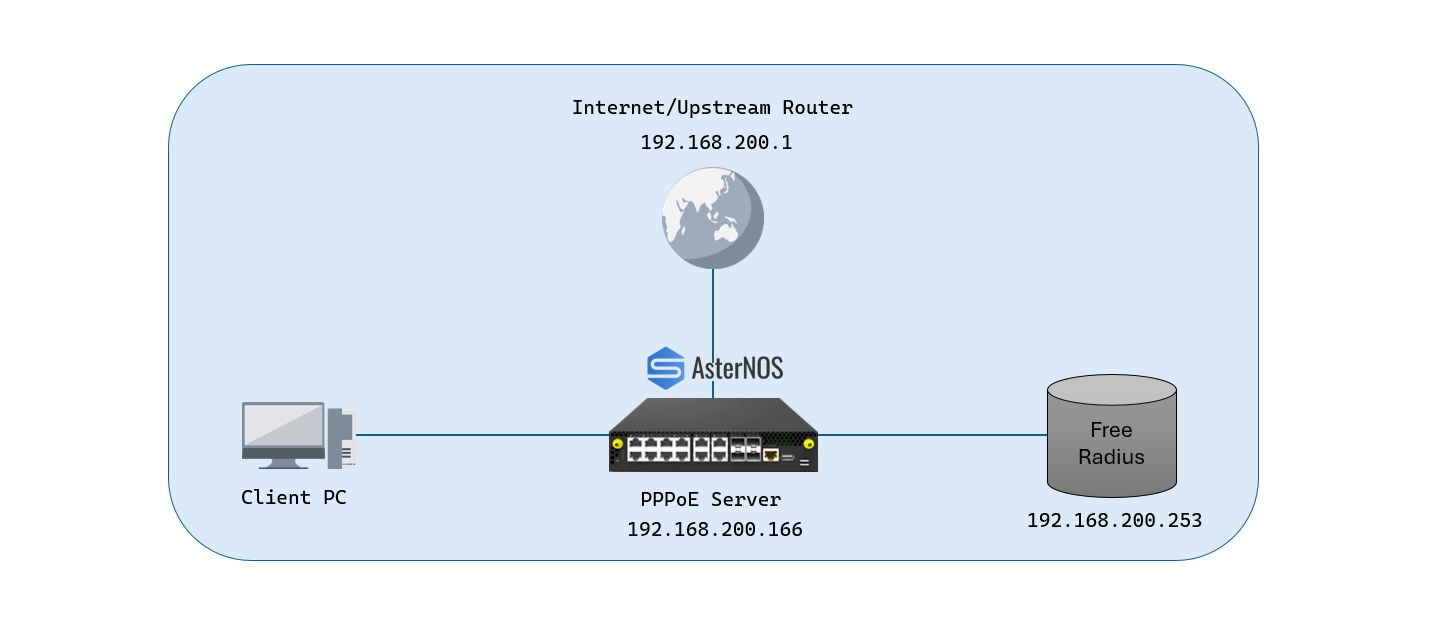
Target Configuration Plan
Section titled “Target Configuration Plan”| Device/Interface | IP Address/Subnet | Role |
|---|---|---|
| AsterNOS (Eth1) | 192.168.200.166/24 | WAN Uplink(Route to RADIUS & Core Network) |
| AsterNOS (Eth2) | N/A (Layer 2 PPPoE) | LAN Interface(PPPoE Dial-in Port) |
| RADIUS Server | 192.168.200.253/24 | Centralized AAA Server(FreeRADIUS) |
| Dial-in Client PC | 192.168.100.x/24 | PPPoE Client |
Phase 1: Baseline Setup (Local Pool IP Allocation)
Section titled “Phase 1: Baseline Setup (Local Pool IP Allocation)”In this phase, we establish an enterprise-grade vBNG architecture. To ensure a smooth deployment, we will build this in two stages:
- Baseline Setup: Centralized RADIUS authentication combined with AsterNOS local IP allocation.
- Advanced Setup: Fully centralized architecture where RADIUS handles both authentication and dynamic IP allocation.
Base Network & RADIUS Global Configuration
Section titled “Base Network & RADIUS Global Configuration”sonic# configure terminal # 1. Configure the WAN Interface (Required to reach the RADIUS server)sonic(config)# interface ethernet 1sonic(config-if-1)# ip address 192.168.200.166/24sonic(config-if-1)# exit # 2. Define Default Route to Core Networksonic(config)# ip route 0.0.0.0/0 192.168.200.1 # 3. Define the Global RADIUS server.CRITICAL: The 'mode pppoe' attribute must be configured FIRST.sonic(config)# radius server 192.168.200.253 mode pppoesonic(config)# radius server 192.168.200.253 auth-type chapsonic(config)# radius server 192.168.200.253 passkey aster123Configure the PPPoE Server
Section titled “Configure the PPPoE Server”In our baseline setup, AsterNOS relies on RADIUS for user authentication but handles IP address distribution locally.
1. Enable PPPoE Server globallysonic(config)# pppoe-server enable # 2. Create the local IP pool for dial-in clientssonic(config)# ip-pool pppoe-poolsonic(config-ip-pool)# ip-range 192.168.100.10 192.168.100.254sonic(config-ip-pool)# exit # 3. Enter PPPoE Server instance 1sonic(config)# interface pppoe-server 1sonic(config-if-pppoeserver-1)# service-name pppoe-enterprisesonic(config-if-pppoeserver-1)# ac-name pppoe-server-1 # 4. Bind RADIUS for Authentication and Accountingsonic(config-if-pppoeserver-1)# ppp chap radius-server 192.168.200.253sonic(config-if-pppoeserver-1)# nas-ip 192.168.200.166 # 5. Set Virtual Gateway IP and bind the local poolsonic(config-if-pppoeserver-1)# local-ip 192.168.100.1 255.255.255.0sonic(config-if-pppoeserver-1)# remote-ip-pool pppoe-pool # 6. Network Parameterssonic(config-if-pppoeserver-1)# dns-server 8.8.8.8sonic(config-if-pppoeserver-1)# accept-blank-service enablesonic(config-if-pppoeserver-1)# exit # 7. Bind to physical LAN portsonic(config)# interface ethernet 2sonic(config-if-2)# pppoe-server 1sonic(config-if-2)# exitFreeRADIUS Server Setup
Section titled “FreeRADIUS Server Setup”Deploy a lightweight FreeRADIUS configuration focused strictly on AAA, without the complexity of IP pool management.
- Install FreeRADIUS
sudo apt-get updatesudo apt-get install freeradius -y- Configure the NAS Client (AsterNOS Gateway)
sudo nano /etc/freeradius/3.0/clients.confclient AsterNOS-Gateway { ipaddr = 192.168.200.166 secret = aster123}- Create the User Profile
sudo nano /etc/freeradius/3.0/users"radiususer" Cleartext-Password := "radius123" Service-Type = Framed-User, Framed-Protocol = PPP- Restart Service
sudo systemctl restart freeradiusPhase2: Advanced Integration (Centralized RADIUS IP Allocation)
Section titled “Phase2: Advanced Integration (Centralized RADIUS IP Allocation)”Once the baseline authentication is verified, enterprise architectures typically migrate IP allocation to the RADIUS server. This consolidates user management and billing into a single pane of glass.
To upgrade from the Baseline to the Centralized architecture, follow these Delta steps:
Unbind the Local Pool on AsterNOS
Section titled “Unbind the Local Pool on AsterNOS”Shift the allocation responsibility away from the gateway.
sonic# configure terminalsonic(config)# interface pppoe-server 1sonic(config-if-pppoeserver-1)# no remote-ip-pool pppoe-poolsonic(config-if-pppoeserver-1)# exitConfigure the RADIUS IP Pool
Section titled “Configure the RADIUS IP Pool”sudo nano /etc/freeradius/3.0/mods-available/ippoolippool main_pool { range_start = 192.168.100.10 range_stop = 192.168.100.254 netmask = 255.255.255.0
# Keep the following default parameters unchanged filename = ${db_dir}/db.ippool ip_index = ${db_dir}/db.ipindex override = no maximum_timeout = 0}Enable the module
Section titled “Enable the module”sudo ln -s /etc/freeradius/3.0/mods-available/ippool /etc/freeradius/3.0/mods-enabled/Activate IP Pool in Accounting & Post-Auth
Section titled “Activate IP Pool in Accounting & Post-Auth”sudo nano /etc/freeradius/3.0/sites-enabled/defaultIn the accounting { ... } block, add:
accounting { detail unix main_pool # <--- Add this line exec # ...}In the post-auth { ... } block, add:
post-auth { exec main_pool # <--- Add this line # ...}Update User Profile & Apply Changes
Section titled “Update User Profile & Apply Changes”sudo nano /etc/freeradius/3.0/users"radiususer" Cleartext-Password := "radius123", Pool-Name := "main_pool" Service-Type = Framed-User, Framed-Protocol = PPPsudo systemctl restart freeradiusPhase 1 & 2 Verification
Section titled “Phase 1 & 2 Verification”After completing the configuration and restarting the RADIUS service, follow these steps to verify that the PPPoE session is successfully established:
- Client Dial-in: Create a PPPoE connection on the client PC and dial in using your username and password.
- Check Session Status: Once successfully connected, execute the following command to view real-time session information.
sonic# show pppoe-sessionExpected Output:
Id Iface SessionId RemoteMac RemoteIp LocalIp LocalIf PppoeServer Uptime---- --------- ----------- ----------------- ------------- ------------- --------- -------------- -------- 0 Ethernet3 384 00:e0:4c:68:06:0d 192.168.100.10 192.168.100.1 ppp0 pppoe-server-1 0:00:37Scenario
Section titled “Scenario”This section provides the complete, standalone configuration required to set up the PPPoE server using AsterNOS’s internal database for authentication and local IP pool for address allocation.
Configure the PPPoE Server
Section titled “Configure the PPPoE Server”1. Enable PPPoE Server globallysonic# configure terminalsonic(config)# pppoe-server enable # 2. Create the local IP pool for dial-in clientssonic(config)# ip-pool pppoe-poolsonic(config-ip-pool)# ip-range 192.168.100.10 192.168.100.254sonic(config-ip-pool)# exit # 3. Enter PPPoE Server instance 1sonic(config)# interface pppoe-server 1sonic(config-if-pppoeserver-1)# service-name pppoe-enterprisesonic(config-if-pppoeserver-1)# ac-name pppoe-server-1
sonic(config-if-pppoeserver-1)# ppp chap username testuser 123456sonic(config-if-pppoeserver-1)# nas-ip 192.168.200.166 # 5. Set Virtual Gateway IP and bind the local poolsonic(config-if-pppoeserver-1)# local-ip 192.168.100.1 255.255.255.0sonic(config-if-pppoeserver-1)# remote-ip-pool pppoe-pool # 6. Network Parameterssonic(config-if-pppoeserver-1)# dns-server 8.8.8.8sonic(config-if-pppoeserver-1)# accept-blank-service enablesonic(config-if-pppoeserver-1)# exit # 7. Bind to physical LAN portsonic(config)# interface ethernet 2sonic(config-if-ethernet2)# pppoe-server 1sonic(config-if-ethernet2)# exitEnable SNAT for Internet Access
Section titled “Enable SNAT for Internet Access”To allow the locally authenticated PPPoE clients (e.g., 192.168.100.x) to browse the public internet, you must translate their private IPs to the WAN interface’s public/uplink IP.
1. Enable the NAT engine globallysonic(config)# nat enable # 2. Define a NAT pool using the WAN uplink IP (192.168.200.166)sonic(config)# nat pool wan-pool 192.168.200.166 # 3. Bind the pool to masquerade all outbound routed trafficsonic(config)# nat binding bind-wan wan-pool # 4. Apply NAT zone to the WAN interfacesonic(config)# interface ethernet 1sonic(config-if-1)# nat-zone 1sonic(config-if-1)# exitVerification
Section titled “Verification”After completing the configuration, follow these steps to verify that the PPPoE session is successfully established:
- Client Dial-in: Create a PPPoE connection on the client PC and dial in using your username and password.
- Check Session Status: Once successfully connected, execute the following command to view real-time session information.
sonic# show pppoe-sessionExpected Output:
Id Iface SessionId RemoteMac RemoteIp LocalIp LocalIf PppoeServer Uptime---- --------- ----------- ----------------- ------------- ------------- --------- -------------- -------- 0 Ethernet3 384 00:e0:4c:68:06:0d 192.168.100.10 192.168.100.1 ppp0 pppoe-server-1 0:00:37Conclusion
Section titled “Conclusion”This guide has verified the comprehensive PPPoE Server capabilities of AsterNOS, transforming a standard gateway into a high-performance vBNG. The completed scenarios demonstrate its deployment flexibility, seamlessly supporting both enterprise centralized RADIUS integration and standalone operations with local authentication and NAT.