
Appendix
ONIE Installation
Section titled “ONIE Installation”ONIE installation flowchart:
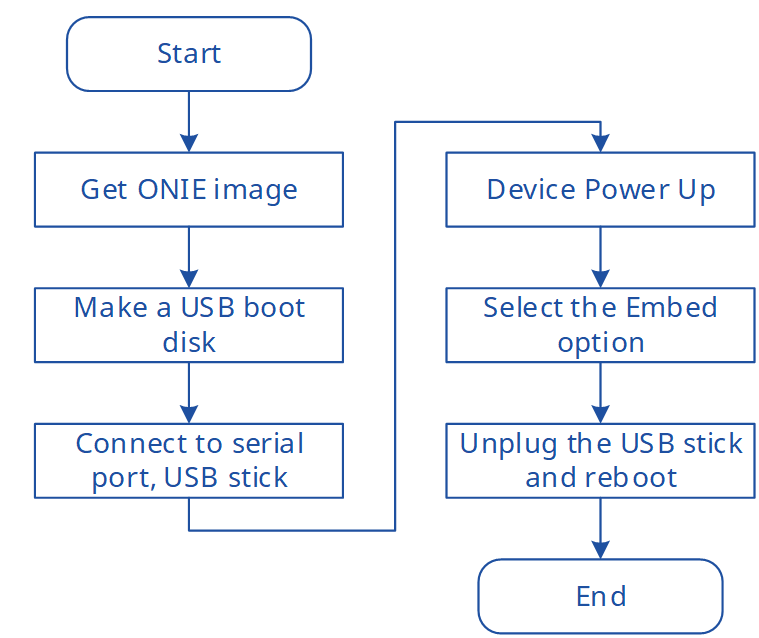
Step 1: Make ONIE USB Boot Disk
- Download the burn file to your computer (provided by the white-box hardware vendor).
- Burn the image file using one of the following methods:
Method 1: Direct Burning
1.Find the USB stick to be burned and format the USB stick.
ubuntu@desktop$ sudo fdisk -lFind the disk drive to be burned,then format it and burn the image file.
ubuntu@desktop$ sudo mkfs.vfat /dev/sdb -I2.Burn the file to a USB stick.
sudo dd if=<onie-image> of=/dev/sdbMethod 2: Using the Rufus Tool
- Download Rufus to your computer: https://rufus.ie/zh/
- Insert the USB drive into the computer. Rufus will automatically recognize it. Open Rufus, select the downloaded burn file, and click Start. Wait for the file to be burned to the USB drive.
Step 2: Install ONIE via USB
- Insert the USB drive into the device’s serial/USB port, power on the device, and immediately connect using a serial communication tool like Minicom.
- Enter the interface shown below and select the “ONIE: Embed ONIE” option.

- When you see “Info: Sleeping for 20 seconds”, press Enter, enter the
rebootcommand, and then unplug the USB drive. - After the system reboots, it will default to ONIE: Install OS mode, indicating successful ONIE installation.

Dhcpd.conf File
Section titled “Dhcpd.conf File”Below is a sample DHCP configuration file for AsterNOS installation:
## Sample configuration file for ISC dhcpd for Debian## Attention: If /etc/ltsp/dhcpd.conf exists, that will be used as## configuration file instead of this file.### The ddns-updates-style parameter controls whether or not the server will## attempt to do a DNS update when a lease is confirmed. we default to the## behavior of the version 2 packages ('none', since DHCP v2 didn't## have support for DDNS.)ddns-update-style interim;ignore client-updates;authoritative;
Allow booting;allow bootp;allow unknown-clients;
## option definitions common to all supported networks...#option domain-name "example.org";#option domain-name-servers ns1.example.org, ns2.example.org;
default-lease-time 600;max-lease-time 7200;
## If this DHCP server is the official DHCP server for the local## network, the authoritative directive should be uncommented.#authoritative;
## Use this to send dhcp log messages to a different log file (you also## have to hack syslog.conf to complete the redirection).log-facility local7;
## No service will be given on this subnet, but declaring it helps the## DHCP server to understand the network topology.#subnet 10.152.187.0 netmask 255.255.255.0 {#}
## This is a very basic subnet declaration.subnet 10.250.0.0 netmask 255.255.255.0 {  range 10.250.0.200 10.250.0.239; ## IP pool  default-lease-time 6000; # Default lease time  max-lease-time 72000; # Maximum lease time  option subnet-mask 255.255.255.0; # Subnet mask  option routers 10.250.0.241; # Gateway  option domain-name-servers 114.114.114.114; # DNS server  option bootfile-name "AsterNOS_V3.1.bin"; # Boot file  next-server 10.250.0.241; # TFTP server IP  filename "pxelinux.0"; # PXE boot file}