
Device Maintenance
Version Image Copy
Section titled “Version Image Copy”The device supports multiple methods to copy version images onto the target device for upgrading.
The Device Copies the Image as a TFTP Client
Section titled “The Device Copies the Image as a TFTP Client”In this scenario, the device and a file server establish communication. The device functions as a TFTP client, while the file server operates as a TFTP server. The objective is to download the version image stored on the server to the device, thereby accomplishing the software version upgrade.
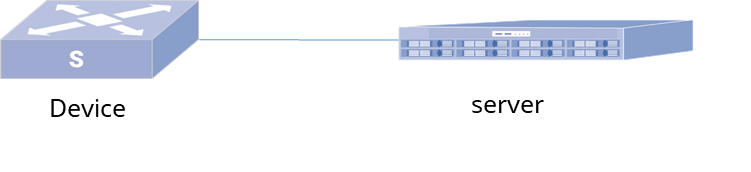
- Configure the IP address of the file server, ensuring that the file server and the device are routable.
- Start the TFTP server on the device to initiate the download of the version image.
admin@sonic:~$ tftptftp> helptftp> connect(to) 150.1.0.1tftp> get AsterNOS-V5.2R001.binReceived 17437 bytes in 0.0 secondstftp> quitadmin@sonic:~$ lsAsterNOS-V5.2R001.binCopying Images Using SCP
Section titled “Copying Images Using SCP”
- Configure the IP address of the file server to ensure that the file server and the device are reachable via routing.
- On the device, use the SCP command to complete the download of the version image.
admin@sonic:~$ sudo scp server@192.168.0.100:/share/ AsterNOS-V5.2R001.binadmin@sonic:~$ lsAsterNOS-V5.2R001.binCopying Images Using a USB Drive
Section titled “Copying Images Using a USB Drive”This method is suitable when there is no network environment available, and you need to copy the version image to the device. Typically, the USB port of the device is located on the front panel.
- Insert the USB drive containing the system image into the device’s USB port.
- Execute a command to view the disk name corresponding to the USB drive:
admin@sonic:\~$ sudo /sbin/fdisk -l- Create a directory for mounting the USB drive.
admin@sonic:\~$ sudo mkdir /mnt/usb/- Mount the USB drive. Take the example of /dev/sdb4 as the path for the USB drive, but please adjust according to the actual situation.
admin@sonic:\~$ sudo mount /dev/sdb4 /mnt/usb- Navigate to the directory of the mounted disk and copy files from the disk to the device.
admin@sonic:~$ cd /mnt/usbadmin@sonic:/mnt/usb/$ sudo cp AsterNOS-V5.2R001.bin /home/adminadmin@sonic:~$ lsAsterNOS-V5.2R001.binExecuting the Upgrade Command
Section titled “Executing the Upgrade Command”| Operation | Command | Description |
|---|---|---|
| Execute the upgrade command | image update image-name | If a configuration upgrade is required, please execute the “write” command to save the configuration before proceeding with the upgrade. Once the upgrade is completed without any errors, you’ll need to manually restart the device to switch to the new version |
| Display the version | show version | - |
Version rollback
Section titled “Version rollback”When there are multiple available image versions in the current system, the device supports version rollback.
First, use the sonic_installer list command to check the currently available versions on the device:
sonic# system bashUse 'exit' to return sonic-cliadmin@sonic:~$ sudo sonic_installer listCurrent: SONiC-OS-V5.2R015-20251230.203457 # Current versionNext: SONiC-OS-V5.2R015-20251230.203457 # The version to be used at the next startupAvailable:SONiC-OS-V5.2R015-20251230.203457 # Available versionsSONiC-OS-V5.2R015T06-20251226.151841 # Available versionsAccording to the output of “sonic_installer list”, there are two available image versions on the device. The default startup item is the currently running version (V5.2R015-20251230.203457). It is possible to roll back to the other version (V5.2R015T06-20251226.151841).
Users can roll back the version using the set_default command, setting the version for the next startup to V5.2R015T06-20251226.151841.
admin@sonic:\~$ sudo sonic_installer set_default SONiC-OS- V5.2R015T06-20251226.151841Verification:
admin@sonic:~$ sudo sonic_installer listCurrent: SONiC-OS-V5.2R015-20251230.203457 # Current versionNext: SONiC-OS-V5.2R015T06-20251226.151841 # The version to be used at the next startupAvailable:SONiC-OS-V5.2R015-20251230.203457 # Available versionsSONiC-OS-V5.2R015T06-20251226.151841 # Available versionsRestart to apply changes
admin@sonic:\~$ sudo rebootIn this way, the rolled-back version will be started.
One-click Collection of Operation and Maintenance Information
Section titled “One-click Collection of Operation and Maintenance Information”When operation and maintenance personnel remotely troubleshoot on-site faults, they often need to communicate multiple times to check the configuration status of on-site switches. To facilitate collecting more information at one time, a quick operation and maintenance command is added to collect switch information. After executing this command, the compressed file is saved to the fixed directory /var/dump/, which can be copied.
admin@sonic:\~$ show techsupportThe switch allows users to collect logs and core files from a specified date onwards using “since”, or to specify the number of logs to collect using “count”.
For example:
admin@sonic:\~$ show techsupport --since 2026-01-16 count 2System Memory-Monitor
Section titled “System Memory-Monitor”This operation is used to enable the system memory protection mechanism of the switch. This mechanism monitors the system memory and the status of processes within the container in real-time. When an abnormality is detected, it automatically triggers hierarchical recovery operations (such as alarms, termination of non-critical processes). It aims to prevent the system from getting stuck due to memory exhaustion or process abnormalities and reduce the need for manual intervention.
After this function is enabled, the system will perform a memory status check every five minutes.
Processing Method When Memory Exceeds the Threshold
Section titled “Processing Method When Memory Exceeds the Threshold”- If a single process exceeds 30%, the system outputs an alarm log.。
- If a single process exceeds 50%, the system outputs an alarm log. If the process is a non-critical process, the system automatically terminates it; if it is a critical process, only an alarm is issued without termination.。
- When the total memory exceeds 80%, the system outputs an alarm log.
- When the total memory exceeds 95%, the system outputs an alarm log. It automatically terminates the current non-critical process with the highest memory usage (Top 1). If the process is a critical process, it will not be terminated.
Configuration Method
Section titled “Configuration Method”Enable global memory monitoring and automatic processing functions.
sonic# configuresonic(config)# system memory-monitor kill-process-enableTurn off the global memory monitoring and automatic processing functions.
sonic# configuresonic(config)# no system memory-monitor kill-process-enableBandwidth Utilization Exceeds Threshold Alarm
Section titled “Bandwidth Utilization Exceeds Threshold Alarm”This operation is used to set bandwidth alarms for specified interfaces. When the utilization rate exceeds the set threshold, the system will generate an alarm log; when the utilization rate drops below the recovery threshold, the alarm will be cleared.
1. Enter the configuration view of the specified interface.
You need to first enter the interface view you want to configure (for example, Ethernet2)
sonic# configuresonic(config)# interface ethernet 2sonic(config-if-2)#2. Configure alarm thresholds
In the interface view, use the log-threshold command for configuration. You can set both incoming and outgoing directions (both) at the same time, or set the outgoing direction (tx) or incoming direction (rx) separately.
Command format:log-threshold direction alert_threshold resume_threshold
sonic(config-if-2)#log-threshold both 70 60After the configuration is completed, you can use the show command to check the global default values and the custom alarm configurations on all interfaces.
Run the following command directly in the privileged EXEC mode (sonic#):
sonic# show interface log-thresholdInterface Default Bandwidth utilization rx/tx alert_threshold: 80%, resume_threshold: 75% customer defined Interface rx_alert_threshold rx_resume_threshold tx_alert_threshold tx_resume_threshold ----------- -------------------- --------------------- -------------------- --------------------- Ethernet2 70 60 70 60License Explanation
Section titled “License Explanation”Switches come with a default license in their factory settings. If you need to apply for a license, please visit the Asterfusion help website (https://help.cloudswit.ch/portal/en/newticket ) for support.
Users can check the device’s license status using “show license status”.
sonic# show license statusLicense Name : all-19710101-licenseMD5 : fab126157378dd632cc607d0c00488cdValid : TrueBuild Time : 1970-12-31 16:07:24Valid To : 2026-07-19 09:39:08Feature Status---------------------------------------IGMP TRUETUNNEL TRUEROUTER_PROTOCOL TRUECLI TRUEVailid To:The valid time of the device’s license. If the switch’s license expires, users are allowed to enter the system configuration view but cannot configure IGMP, TUNNEL, ROUTE_PROTOCOL, etc. (Existing relevant configurations will still take effect but cannot be modified.)
Feature:Features controlled by License
- IGMP:Valid value TRUE/FALSE, indicating whether the multicast function (IGMP Snooping) is enabled.
- TUNNEL:Valid value TRUE/FALSE, indicating whether the tunnel function (GRE, VXLAN) is enabled
- ROUTE_PROTOCOL:Valid values are TRUE/FALSE, indicating whether the routing policy functions (BGP, OSPF) are enabled.
- CLI:The valid values are TRUE/FALSE, indicating whether the command line is enabled. If it is not enabled, you cannot enter the system configuration view.
License Usage
When a device needs to apply a newly obtained license file, the file should be placed in the /etc/sonic/lic directory of the switch.
admin@sonic:~ $ sudo cp path/ sn-time-license /etc/sonic/licVerification:
sonic# system bashUse 'exit' to return sonic-cliadmin@sonic:~$ cd /etc/sonic/licadmin@sonic:/etc/sonic/lic$ lssn-time-licenseLicense Update
sonic# license updateNetwork Connectivity Check
Section titled “Network Connectivity Check”Explanation of this section: The functions and standard operation methods of the two basic network diagnostic tools, Ping and Traceroute. The standard troubleshooting approach is: first use Ping to confirm connectivity and basic quality, and if a problem is found, then use Traceroute to locate the specific network node where the fault occurs.。
The ping command is used to test the network layer connectivity, round-trip delay, and stability between a local device and a target IP address or domain name. It is the first tool used in network troubleshooting.
In the device’s command-line interface, executing the ping command requires specifying the target address and supports users to append optional parameters as needed.
sonic# ping 192.168.0.1 source Source IP-address (ip) or interface (ip and arp) or vrf repeat Requests to send count, default is 5 resolve Resolve names broadcast Ping broadcast address size Packet size interval The time interval between packets, default is 1 flood Flood pingInterpretation of execution results
| Output/Phenomenon | Possible causes and key points for troubleshooting |
|---|---|
| Destination Host Unreachable | ICMP destination unreachable, replied by intermediate routing devices (usually gateways). It indicates that the gateway knows how to reply, but the route to the destination does not exist or ARP fails. Check the switch’s default route and gateway ARP table (show arp) |
| Request timeout | 1. One-way traffic failure: The outgoing or incoming path is blocked. 2. The peer or intermediate device drops ICMP: Common in security policies. 3. Severe routing black hole. Action: Immediately execute traceroute or use the -I option to change the source address for testing to identify the interruption point. |
| Unknown host | DNS resolution failed. Check SONiC’s DNS configuration: cat /etc/resolv.conf, and try pinging the IP address directly to distinguish whether it is a network issue or a DNS issue. |
| large avg/max or large mdev | Network congestion, poor link quality, or circuitous paths. It is necessary to check the delay of each hop using traceroute. |
| Intermittent packet loss | It may be caused by link fluctuations, unstable ARP tables, or queue congestion. Use ping -c 100 for continuous testing. Check the error packet counts and logs of relevant interfaces on SONiC (show logging). |
Traceroute
Section titled “Traceroute”The Traceroute command is used to discover and display the complete path (each hop router) that data packets take from the source device to the target host, and to measure the delay to each hop. When the network is unavailable or the delay is too high, it can accurately locate the network node where the fault occurs.
In the device command line, enter Traceroute followed by the target address.
sonic# traceroute 192.168.15.81 resolve Resolve names source Source IP-addressInterpretation of execution results
| Output/Phenomenon | Possible causes and key points for troubleshooting |
|---|---|
| * * * | Timeout. Try switching the -T or -I protocol. |
| !H / !N | The host/network is unreachable. The router clearly indicates that there is no route. Check the hop device. |
| !X / !A | Management policy prohibits/communication rejected. Explicitly blocked by security devices (ACL, firewall). |
| Sudden increase in delay | The current hop or the previous hop has network congestion or a poor path. Further analysis is needed in combination with the topology. |
| The end of the path is reachable, but the application is not accessible | The path is normal; the problem may be at the application layer (service not listening, higher-level firewall). |